
Before you install ViGEmBus
Before you install ViGEmBus, confirm that you need the driver. It has no desktop interface and does not remap a controller alone. It is a dependency for software that creates a virtual Xbox 360 or DualShock 4 controller.
Use Windows 10 or Windows 11. The final branch supports x86, amd64/x64 and ARM64, and the 1.22.0 installer includes all three architectures. You do not need to download a separate `ViGEmBusSetup_x64.msi`. That MSI naming appears in older documentation and search results; the current final release asset is an all-in-one EXE.
Close controller and streaming utilities before you install ViGEmBus. If Device Manager shows multiple bus entries, clean the old copies before installing another.
| Check | Expected result |
|---|---|
| Operating system | Windows 10 or Windows 11 |
| Installer | ViGEmBus_1.22.0_x64_x86_arm64.exe |
| Release source | github.com/nefarius/ViGEmBus |
| Free disk space | More than the 6.0 MB installer size plus normal driver storage |
| Permissions | A Windows account able to approve an administrator prompt |
Install ViGEmBus 1.22.0 step by step
Install ViGEmBus in a short sequence, then verify the source and final Device Manager status.
The official all-in-one package lets Windows choose the architecture. Do not copy a loose `.sys` file; install ViGEmBus through the signed setup so Windows registers the driver normally.
Windows may show SmartScreen or User Account Control. Read the file name and publisher details instead of treating a prompt as a safety verdict.
- 1
Download from the official release
Open the Nefarius v1.22.0 release or use the verified download button on this page. Confirm the EXE name before continuing.
- 2
Review file properties
Right-click the downloaded EXE, choose Properties and inspect the General and Digital Signatures tabs when available. The source and publisher should be consistent with Nefarius Software Solutions.
- 3
Close apps before you install ViGEmBus
Exit controller tools from the notification area as well as their visible windows. A background process can keep an existing bus in use.
- 4
Install ViGEmBus from the signed EXE
Open the EXE, approve the administrator prompt and keep the normal choices. Do not disable Windows driver-signature enforcement.
- 5
Reboot after you install ViGEmBus
A reboot clears old driver handles and lets Windows enumerate the installed bus cleanly.
- 6
Verify the driver
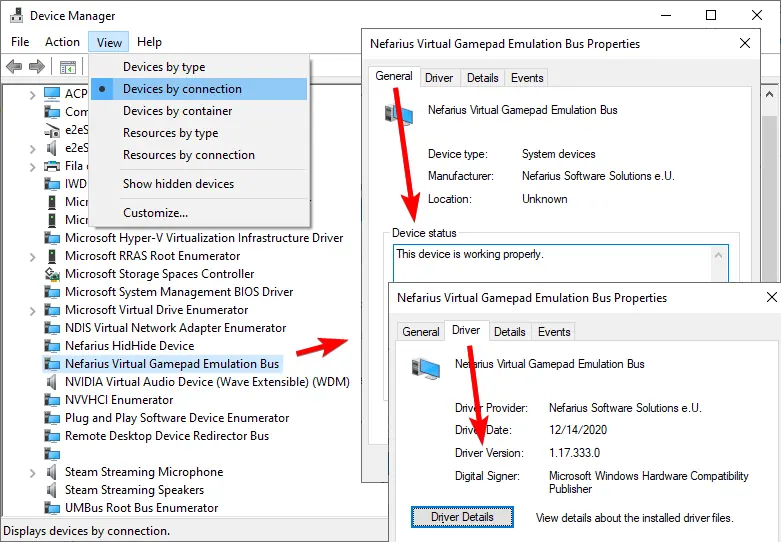
Open Device Manager, choose View → Devices by connection and locate Nefarius Virtual Gamepad Emulation Bus. Open Properties and confirm the General tab reports that the device is working properly.
- 7
Restart your controller application
Open DS4Windows or the app that requested ViGEmBus. Reconnect the physical controller and test whether the app can create its virtual output device.
Install ViGEmBus over an older version
The final notes say an in-place upgrade may need two runs. To install ViGEmBus over an older release, complete the first pass, then launch the same official 1.22.0 EXE again.
Version 1.22.0 removed the updater entirely while leaving the underlying driver version unchanged. That distinction explains why an installed driver tab may not display `1.22.0` as a simple driver version. The setup release version and the kernel driver file version are different identifiers. Judge the upgrade by the installed product entry, removal of the old updater and the health of the bus, not by expecting every Windows field to equal the setup tag.
Installing 1.22.0 removes the retired updater. If you must keep an older product, follow the official Legacinator or manual updater guidance.
Verify after you install ViGEmBus
Open Device Manager by pressing Windows + X and selecting Device Manager. From the View menu choose Devices by connection. Search the device tree for Nefarius Virtual Gamepad Emulation Bus or Virtual Gamepad Emulation Bus. One healthy Nefarius entry is the normal result.
Right-click the entry and open Properties. The General tab should say the device is working properly. The Driver tab should show Nefarius as the provider and a valid digital signer. An old date by itself does not prove the final setup failed, because the release notes state that the driver version did not change in 1.22.0.
Also check Windows Installed apps for Nefarius Virtual Gamepad Emulation Bus Driver. Device Manager confirms the active device; Installed apps confirms the product has a normal uninstaller. Finally, test from the client application. A healthy bus can exist while a controller tool is misconfigured, so a remaining app error is not always a driver installation failure.
Fix problems after you install ViGEmBus
If the installer completes but an application still says the bus is missing, restart Windows before reinstalling again. Then verify Device Manager and start the client application after Windows has finished enumerating devices. A stale application process may have cached the missing-driver state.
If two or more bus entries appear, do not keep repeating the installer. Remove ViGEmBus through Installed apps, reboot, return to Device Manager and remove remaining Virtual Gamepad Emulation Bus entries. Advanced Driver Store cleanup should be a last resort and should follow the official documentation carefully because deleting the wrong driver package can affect unrelated hardware.
HP Omen systems are a documented special case. Some models shipped with an old modified fork of ViGEmBus, and applications can detect that copy instead of the newer Nefarius driver. If the device entry or provider does not match expectations after a normal reinstall, review the official HP Omen-specific troubleshooting linked from Nefarius documentation.
Do not solve setup trouble by disabling driver-signature enforcement, downloading a loose `vigembus.sys`, copying unknown INF files or using a generic driver updater. Those actions weaken the source trail and can turn a straightforward dependency problem into a system-driver problem.
| Symptom | Likely cause | First action |
|---|---|---|
| App still reports not installed | Restart or cached app state | Reboot, verify Device Manager, then reopen the app |
| Multiple bus entries | Old or bundled copies | Normal uninstall, reboot and clean duplicate entries |
| Upgrade appears unchanged | 1.22.0 in-place behavior | Run the same official setup a second time |
| Old updater warning | Pre-EOL updater configuration | Install 1.22.0 or use official Legacinator guidance |
| Unknown publisher | Wrong or repackaged file | Stop and redownload from nefarius/ViGEmBus |
What to do after you install ViGEmBus
ViGEmBus will not open a setup dashboard. Return to the software that required it and configure the virtual controller there. For DS4Windows, that usually means reconnecting the physical controller and checking that the selected profile creates the intended output controller. For other applications, use their own output or emulation settings.
Keep the installer only as an offline repair copy and record its v1.22.0 GitHub source. The project is archived, so use the controller application's current documentation for future backend changes.
If virtual-controller software is no longer needed, remove ViGEmBus through Windows. Dependent apps will lose their virtual output, but the physical controller driver normally remains.
Windows Server 2022 and the old MSI error
If the installer says it cannot be installed on Windows Server 2022, do not treat that message as proof that the EXE is corrupt. The current ViGEmBus page targets Windows 10 and Windows 11; Server support is not an official guarantee. The older ViGEmBusSetup_x64.msi wording belongs to an earlier package path.
For a normal Windows 10 or 11 install, use the final v1.22.0 all-in-one EXE and verify one healthy bus in Device Manager. If you are troubleshooting the exact “not installed or running” message, use the ViGEmBus not-installed guide instead of mixing Server workarounds into the standard install.
ViGEmBus installation FAQ
How do I install ViGEmBus on x64 Windows?
Install ViGEmBus with the all-in-one file ViGEmBus_1.22.0_x64_x86_arm64.exe. It contains x64, x86 and ARM64 builds, so there is no separate current x64 MSI.
Do I need to run ViGEmBus as administrator?
Windows must approve administrator-level driver installation. Open the official EXE normally and approve the User Account Control prompt when Windows asks.
Why do the release notes say to run setup twice?
The publisher documented that an in-place upgrade may not complete correctly on the first pass. Run the same verified 1.22.0 setup again when upgrading an older installation.
Does ViGEmBus need a restart?
Restart when the installer requests it. A reboot is also a useful first step when a controller application still reports the old driver state after installation.
How do I know ViGEmBus is working?
Device Manager should show one Nefarius Virtual Gamepad Emulation Bus entry whose General status says the device is working properly. Then test virtual output in the client application.
Can I install ViGEmBus on Windows 7?
The final 1.22.0 line targets Windows 10 and 11. Older 1.16-era builds targeted Windows 7 and 8.1 but are retired and are not recommended as a current supported setup.
Does ViGEmBus support Windows Server 2022?
The final setup is documented for Windows 10 and Windows 11. Do not describe Windows Server 2022 as officially supported; treat an installer block there as a platform-compatibility limit and check the original Nefarius documentation before testing a workaround.
Is ViGEmBusSetup_x64.msi the current installer?
No. The final public setup is ViGEmBus_1.22.0_x64_x86_arm64.exe. Older MSI names can still appear in search results and archived instructions, but they are not the current all-in-one release asset.
Official sources used
Product and safety facts on this page are checked against first-party material. External sources open in a new tab.
- ViGEmBus v1.22.0 release — final installer, asset name, date and in-place upgrade note
- Official ViGEmBus README — supported systems and production-signed setup statement
- Nefarius install and removal guide — Device Manager health checks, removal and duplicate-driver troubleshooting