
What “ViGEmBus Is Not Installed” Means
Controller applications use ViGEmBus to create a virtual Xbox 360 or DualShock 4 device. The message ‘ViGEmBus is not installed or running’ appears when the application cannot reach that device layer. ViGEmBus is not installed when both the product and bus device are absent; the same message can also appear when an installed copy is broken.
The bus may genuinely be absent, disabled, damaged or replaced by an old bundled copy. The application may also have started before Windows completed driver installation, or it may be holding a stale result from before the reboot. A clean diagnosis separates those cases instead of repeatedly downloading the setup.
The exact wording appears in different applications, including DS4Windows-related workflows and remote gamepad software such as Sunshine/Apollo. Menu names differ between apps, but the Windows driver checks are the same: one current Nefarius bus, healthy device status and a client process restarted after installation.
| What you see | What it usually means | Next step |
|---|---|---|
| No bus entry in Device Manager | Driver is not installed | Install official 1.22.0 and reboot |
| Yellow warning icon | Driver failed to start or has a conflict | Read device status, uninstall and reinstall |
| Two or more bus entries | Old/bundled copies conflict | Clean duplicates before reinstalling |
| One healthy bus, app still errors | App cache, permissions or its own configuration | Restart app/Windows and review app logs |
| HP Omen plus old bus provider | OEM-modified legacy fork | Follow the official HP Omen troubleshooting path |
Fix the “ViGEmBus Is Not Installed” Message
Work in this order and stop when the error is gone.
Do not run random driver cleaners at the first sign of the message. The normal install-and-verify path solves the common missing dependency while preserving a clear publisher and uninstall record.
- 1
Exit the affected application
Close its visible window and notification-area process. For services or remote-gamepad apps, stop the relevant service using the application's own controls.
- 2
Check Device Manager
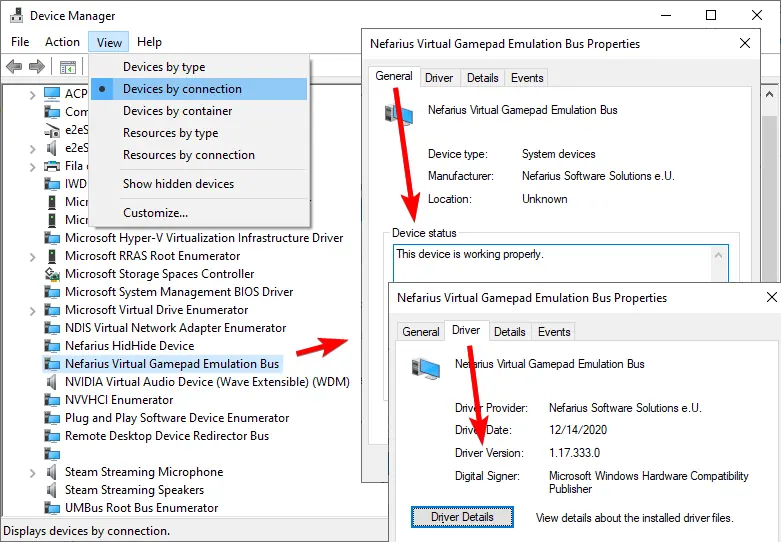
Press Windows + X, open Device Manager, choose View → Devices by connection and find Nefarius Virtual Gamepad Emulation Bus.
- 3
Install when the bus is absent
Download
ViGEmBus_1.22.0_x64_x86_arm64.exefrom the official Nefarius GitHub release. Run it and approve the Windows administrator prompt. - 4
Restart Windows
A reboot clears old handles and lets Plug and Play enumerate the bus before the controller application starts.
- 5
Verify one healthy entry
The bus Properties → General tab should say the device is working properly. More than one entry needs cleanup.
- 6
Open the app and reconnect
Start the affected software, reconnect the physical controller and test virtual gamepad output with the intended profile or mode.
Check whether ViGEmBus is installed correctly
Device Manager confirms whether ViGEmBus is installed correctly. Set View to Devices by connection, locate Nefarius Virtual Gamepad Emulation Bus and open Properties. A healthy General tab reports ‘This device is working properly,’ and the Driver tab should identify Nefarius Software Solutions.
Do not require the visible driver version to equal the setup release number `1.22.0`. The official release notes say the driver version remained unchanged in the final setup. Use the installed product entry, publisher, device status and removal of the legacy updater as combined evidence.
If the device status provides a Windows error code, record it before uninstalling. A disabled device can be enabled directly. A failed or unsigned package should be removed and replaced with the official setup. When the bus is healthy but the app still fails, shift attention to the app rather than repeatedly changing the Windows driver.
Remove duplicate or broken ViGEmBus entries
Multiple Virtual Gamepad Emulation Bus entries can cause client applications to locate the wrong copy. First uninstall Nefarius Virtual Gamepad Emulation Bus Driver through Windows Installed apps or Apps and Features. Restart the PC before checking Device Manager again.
After the normal uninstall, enable Devices by connection in Device Manager. Remove remaining entries named Nefarius Virtual Gamepad Emulation Bus or Virtual Gamepad Emulation Bus and restart again. Reinstall the official 1.22.0 setup only after the duplicate entries are gone.
The official troubleshooting guide describes a deeper Driver Store Explorer procedure for persistent `vigembus.inf` packages. That procedure can remove the wrong system driver if used carelessly, so it is not the first fix. Create a restore point, follow the official page exactly and select only ViGEmBus packages when normal uninstall and Device Manager cleanup fail.
When ViGEmBus is installed but the app still fails
If ViGEmBus is installed and healthy, stop reinstalling the driver. Update or repair the controller application from its official source, confirm its output mode requests a virtual controller, and check its logs for a client-library or permissions error.
For DS4Windows, close every running instance before installing the driver, then reopen it after the reboot. Confirm the active profile uses the expected output controller and that another controller tool is not competing for the same physical device. HidHide is a separate driver used to hide physical controllers; do not uninstall it simply because ViGEmBus reports an error unless the app's own documentation identifies a HidHide conflict.
For Sunshine/Apollo or another service-based application, restart the application service after Windows recognizes ViGEmBus. The service may have started during boot before the repair completed. If the error persists, inspect that application's current documentation because newer releases may have changed their preferred virtual-controller backend.
Security software can also block driver or client behavior, but do not broadly disable protection. Review a specific alert, verify the file path and signer, and allow only the verified package if your organization or local policy permits it.
| Application state | Action |
|---|---|
| App was open during install | Exit it fully and restart after Windows reboot |
| Output controller disabled | Enable the app's virtual Xbox/DS4 output mode |
| Service app still reports old state | Restart its service after confirming Device Manager |
| Another mapper is running | Close competing controller/remapping tools |
| Current app no longer uses ViGEmBus | Follow that app's updated backend/setup documentation |
When ViGEmBus is not installed: fixes to avoid
Avoid generic driver download sites that rename the file, hide the destination behind a custom installer or advertise a newer ViGEmBus version than the archived official repository. The final public setup is 1.22.0. A website claiming a later official release needs evidence from the original publisher, not its own version badge.
Do not disable Windows driver-signature enforcement as a routine fix. The official package is production signed. Signature enforcement problems with an unknown file are a reason to stop and verify the source, not to lower Windows security controls.
Do not delete random INF packages, registry entries or System32 driver files based on a forum snippet. Begin with Installed apps, reboot and Device Manager. Use Driver Store Explorer only for a persistent duplicate after reading the official guide and creating a recovery point.
- Do not use a DLL or SYS download as a substitute for the setup
- Do not install both old architecture-specific MSI files and the final all-in-one EXE
- Do not confuse the ViGEmBus setup version with the Device Manager driver-file version
- Do not remove unrelated Nefarius drivers such as HidHide without a specific reason
Read the exact message before reinstalling
The fatal “ViGEmBus is not installed or running” message means the client cannot reach the virtual bus. The bus may be absent, unhealthy, duplicated or started before Windows finished a reboot; the message alone does not identify which case you have.
Sunshine and Apollo add a host-service layer, while DS4Windows adds a profile and virtual-output layer. If Device Manager already shows one healthy Nefarius bus, stop reinstalling and check the app’s service, profile or current backend instead.
ViGEmBus not installed FAQ
Why does DS4Windows say ViGEmBus is not installed?
DS4Windows cannot find or use the virtual bus it needs for output. Verify whether ViGEmBus is installed in Device Manager, use the official 1.22.0 setup if missing, reboot and reopen DS4Windows.
Why does the error remain after I installed ViGEmBus?
The app may still be running with cached state, Windows may need a reboot, or duplicate old bus entries may be present. Confirm one healthy device before troubleshooting the app itself.
Can I fix the error without restarting?
Sometimes restarting only the application is enough, but a Windows reboot is the reliable next step after driver installation or removal.
Should I install ViGEmBusSetup_x64.msi?
Use the final official all-in-one EXE for Windows 10 and 11. Architecture-specific MSI names belong to older releases and documentation.
What if Device Manager shows two ViGEmBus entries?
Uninstall through Installed apps, reboot, remove remaining bus entries in Device Manager, reboot again and reinstall the official final setup.
Is the fatal ViGEmBus message a controller hardware failure?
Usually not. It indicates the application cannot create its virtual gamepad. Your physical controller can still be detected while virtual output fails.
Why does Sunshine or Apollo show the fatal ViGEmBus message?
The host service cannot reach a usable virtual gamepad bus. Close the service, verify one healthy Nefarius entry in Device Manager, reboot after a repair, and start the service again. Keyboard and mouse streaming can still work while gamepad support is broken.
What if Device Manager shows a healthy bus but the app still says ViGEmBus is missing?
Restart the affected app and its service, check the output profile and close competing controller mappers. A healthy Windows device does not prove that every client is configured to request virtual output.
Official sources used
Product and safety facts on this page are checked against first-party material. External sources open in a new tab.
- Official install and troubleshooting guide — health checks, duplicate entries and full-clean procedure
- ViGEmBus v1.22.0 release — verified setup and upgrade behavior
- Official end-of-life statement — legacy updater and retirement context