
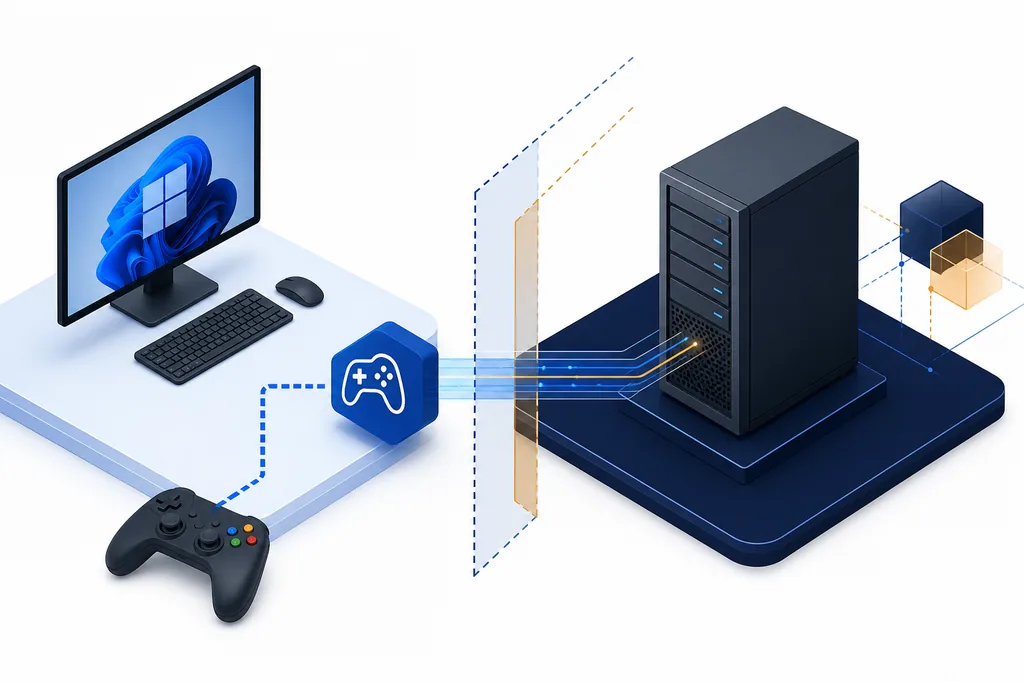
Is ViGEmBus supported on Windows Server 2022?
The practical answer is no: the final release documentation names Windows 10 and Windows 11, while Server 2022 is outside the stated support target.
ViGEmBus is a Windows kernel-mode virtual gamepad bus. A client application such as DS4Windows, BetterJoy, Apollo or another controller utility asks the driver to expose a virtual Xbox 360 or DualShock 4 device. That dependency can be useful on a desktop gaming system, but it does not turn every Windows-family edition into an officially supported platform.
The final public setup is version 1.22.0, published by Nefarius in November 2023. Its official repository and release notes describe Windows 10 and Windows 11 support, including x86, x64 and ARM64 builds. They do not promise Windows Server 2022 support. A Server installation that happens to work in a lab should therefore be reported as an experiment, not as a supported deployment.
This distinction also explains why the broad phrase ViGEmBus driver can lead to the wrong guide. A normal desktop installation question belongs on the installation page. A Server 2022 compatibility question needs a narrower answer about operating-system edition, installer policy, driver signing and application behavior.
| Environment | Official position | Recommended action |
|---|---|---|
| Windows 11 | Supported by the final release | Use the verified 1.22.0 all-in-one EXE. |
| Windows 10 | Supported by the final release | Install and verify the bus in Device Manager. |
| Windows Server 2022 | Not officially supported | Do not promise production compatibility; isolate any test. |
| Windows 7 / 8.1 | Only older retired builds | Do not treat legacy installers as current support. |
| macOS / Linux | No Windows kernel-driver support | Use a platform-native controller solution instead. |
Why the installer can stop on Server 2022
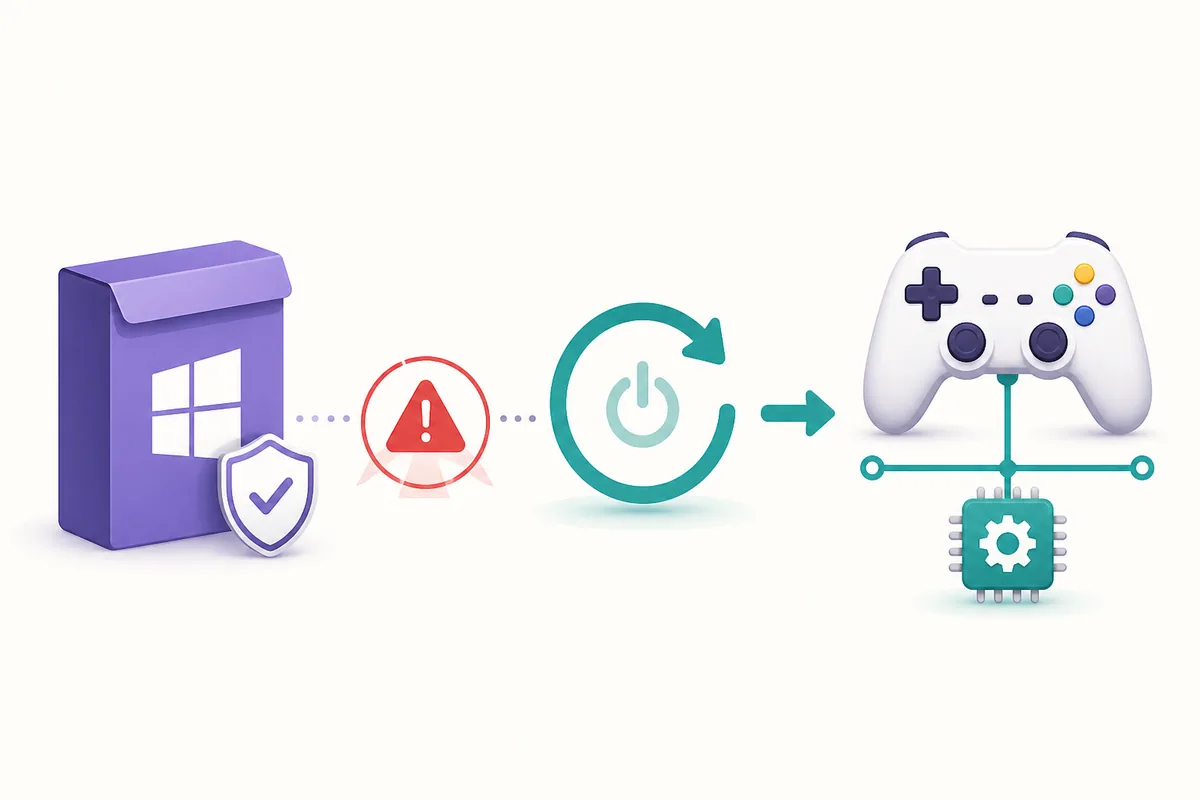
An installer message such as “This product cannot be installed on the following version of Windows” is a compatibility signal. It does not by itself prove that the downloaded EXE is corrupt, that the GitHub release is fake, or that a missing DLL is the root cause. The setup is checking the operating-system environment against the package rules and supported target assumptions.
Search results can make this confusing because older ViGEmBus instructions mention architecture-specific MSI names such as ViGEmBusSetup_x64.msi. The final 1.22.0 release uses one all-in-one EXE named ViGEmBus_1.22.0_x64_x86_arm64.exe. Changing from an old MSI name to the final EXE can correct a stale-instruction problem, but it does not create official Server 2022 support.
Avoid the tempting sequence of disabling driver-signature enforcement, editing the installer database, copying driver files by hand, or downloading a repacked Server build. Those actions remove provenance and can leave a kernel component in a state that is difficult to remove or explain later. If your organization needs a supported solution, the right fix is usually a supported desktop Windows host or a controller application with a maintained backend.
What the final ViGEmBus release actually contains
The download choice should remain simple: use the original Nefarius GitHub release, check the tag and file name, and keep the source URL with your change record. The verified asset is ViGEmBus_1.22.0_x64_x86_arm64.exe. GitHub reports a file size of 6,278,576 bytes, which is approximately 6.0 MB, and the release is archived rather than actively maintained.
The all-in-one file covers x86, x64 and ARM64 desktop Windows builds. It is not a separate Server edition, and the presence of ARM64 in the name does not mean that every Windows edition or server role is supported. Treat architecture and operating-system edition as two different checks.
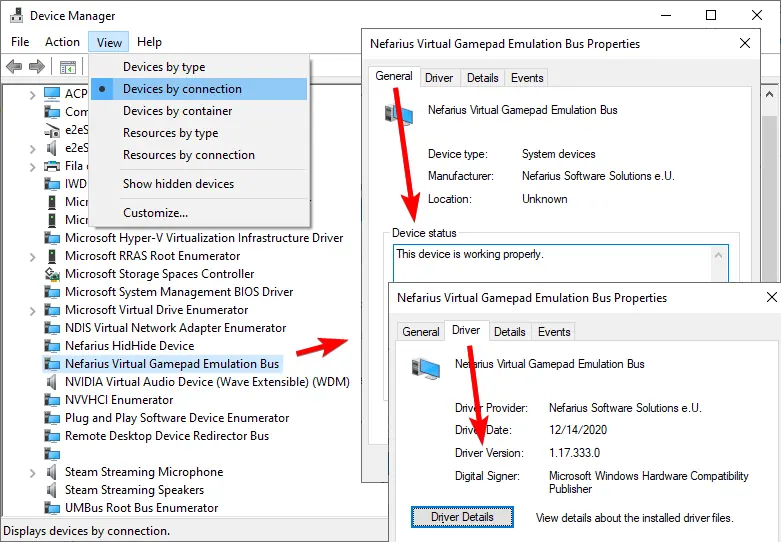
After a supported installation, Device Manager should show one Nefarius Virtual Gamepad Emulation Bus entry with a healthy status. That evidence confirms what Windows sees on that machine; it does not convert an unsupported Server installation into an official compatibility statement.
| Release fact | Verified value | Why it matters |
|---|---|---|
| Release tag | v1.22.0 | The final public setup line. |
| Asset | ViGEmBus_1.22.0_x64_x86_arm64.exe | Use the exact official file name. |
| Published | November 2, 2023 | This is a retired release, not a current update stream. |
| File size | 6,278,576 bytes | A useful provenance check before execution. |
| Server status | Not officially supported | Do not advertise Server 2022 as a supported target. |
If you must test ViGEmBus in a Server lab
Some administrators still need to investigate a legacy application in a controlled environment. Keep the test narrow, reversible and clearly labeled.
Start by writing down the goal. Are you checking whether a legacy controller client launches, whether a virtual device can be created, or whether a particular service account can access the device? A single successful boot does not answer all three questions. Define the exact client, account, workload and success signal before changing the host.
Use a disposable virtual machine or a rollback-capable snapshot where policy permits. Save the official release URL, tag, asset name, file size and publisher details. Do not copy a driver from another machine or mix an old MSI, a repacked archive and the final EXE in one test. That makes later diagnosis and removal much harder.
After the test, record Device Manager status, Event Viewer or installer messages, the client application's output device and whether the behavior survives a restart. If the result is unstable, stop there. A failed or partial experiment is evidence that the platform boundary matters, not a reason to weaken Windows security controls.
- 1
Confirm the target
Record the exact Windows Server edition and build, the client application, the account that will use the virtual controller, and whether the test is disposable.
- 2
Preserve provenance
Use the official v1.22.0 GitHub asset and keep the release URL, exact filename, size and publisher details with the test record.
- 3
Capture evidence
Check Device Manager, installer logs and the client application's output separately. Do not treat one green status as a full compatibility result.
- 4
Roll back or isolate
If the package blocks, behaves inconsistently or cannot be removed cleanly, restore the snapshot or remove it normally. Do not force a production workaround.
Choose the guide that matches the real problem
The fastest way to avoid a wrong fix is to classify the symptom before reinstalling. If you are on Windows 10 or 11 and need the normal setup sequence, use the installation guide. If the application says that ViGEmBus is not installed or running, use the dedicated error guide. If Windows Installer reports error 1603, follow the general 1603 repair sequence instead of repeating the same setup over a stale package.
If the question is whether an old driver should remain on a machine, read the end-of-life and uninstall guidance. If the concern is provenance, publisher or kernel-driver risk, use the safety guide. None of those pages should be stretched into a claim that Server 2022 is supported; this page exists to keep that platform question separate.
- Normal Windows 10/11 setup: follow the current installation guide.
- “ViGEmBus is not installed or running”: check the device, application and output layers in the not-installed guide.
- Windows Installer error 1603: use the reversible repair steps in the error guide.
- Old or duplicate copies: start with normal uninstall and then verify the bus entry.
- Server 2022 compatibility: keep the answer on this page and do not label a workaround as officially supported.
Windows Server 2022 troubleshooting checklist
Before opening a support ticket or changing the host, capture the complete error text and the exact operating-system edition. The phrase “Windows” is not specific enough: Windows 10, Windows 11 and Windows Server 2022 have different support boundaries and servicing assumptions.
Check whether the file came from github.com/nefarius/ViGEmBus, whether the tag is v1.22.0, and whether the asset name is the final all-in-one EXE. Then inspect the publisher and digital signature through Windows file properties when available. These checks establish provenance; they do not prove that an unsupported server deployment will work.
Finally, separate the layers: installer status, Device Manager status, client application status and virtual controller output. If only the client fails while Device Manager is healthy, the problem may belong to the client profile or backend. If the package blocks before installation, keep the issue classified as platform compatibility rather than repeatedly downloading the same file.
- Exact edition and build recorded
- Official repository, release tag and asset name checked
- Publisher and signature inspected where Windows exposes them
- Installer, Device Manager, client and virtual output tested as separate layers
- No driver-signature bypass, repacked archive or guessed download mirror used
- Rollback or normal removal path confirmed before any lab test
ViGEmBus Windows Server 2022 FAQ
Does ViGEmBus support Windows Server 2022?
The final ViGEmBus release is documented for Windows 10 and Windows 11. Do not describe Windows Server 2022 as officially supported; any successful lab result should be treated as an unsupported experiment.
Why does the ViGEmBus installer refuse to run on Server 2022?
The setup can detect that the operating-system edition is outside its documented target and stop before installing. That message is a compatibility boundary, not proof that the official GitHub file is corrupt.
Is ViGEmBusSetup_x64.msi the right Server 2022 installer?
No current Server-specific MSI should be invented. The final public release uses ViGEmBus_1.22.0_x64_x86_arm64.exe for supported Windows 10 and 11 systems. An older MSI name in a forum guide does not create Server support.
Can I force-install ViGEmBus on Windows Server 2022?
You may find unofficial workarounds, but bypassing installer or driver protections removes the clear support and provenance boundary. Do not use a forced installation in production; if testing is unavoidable, isolate it and keep a rollback plan.
Does the final ViGEmBus download include a Server build?
The official asset is one EXE containing x86, x64 and ARM64 desktop Windows builds. The architecture list is not a promise that every Windows edition, including Server 2022, is supported.
What should I do if I need virtual controllers on a server?
First check whether the workload can run on a supported Windows 10 or 11 host, whether the client application has a maintained backend, or whether the vendor documents a server-compatible alternative. Do not turn an unsupported ViGEmBus experiment into an undocumented production dependency.
Official sources used
Product and safety facts on this page are checked against first-party material. External sources open in a new tab.
- Official ViGEmBus README — repository status, supported desktop Windows versions and project context
- ViGEmBus v1.22.0 release — final asset name, publication date and release details
- ViGEmBus Windows Server compatibility issue — first-party issue context for the Windows Server installer boundary
- Nefarius installation guide — Device Manager verification and normal installation/removal guidance