
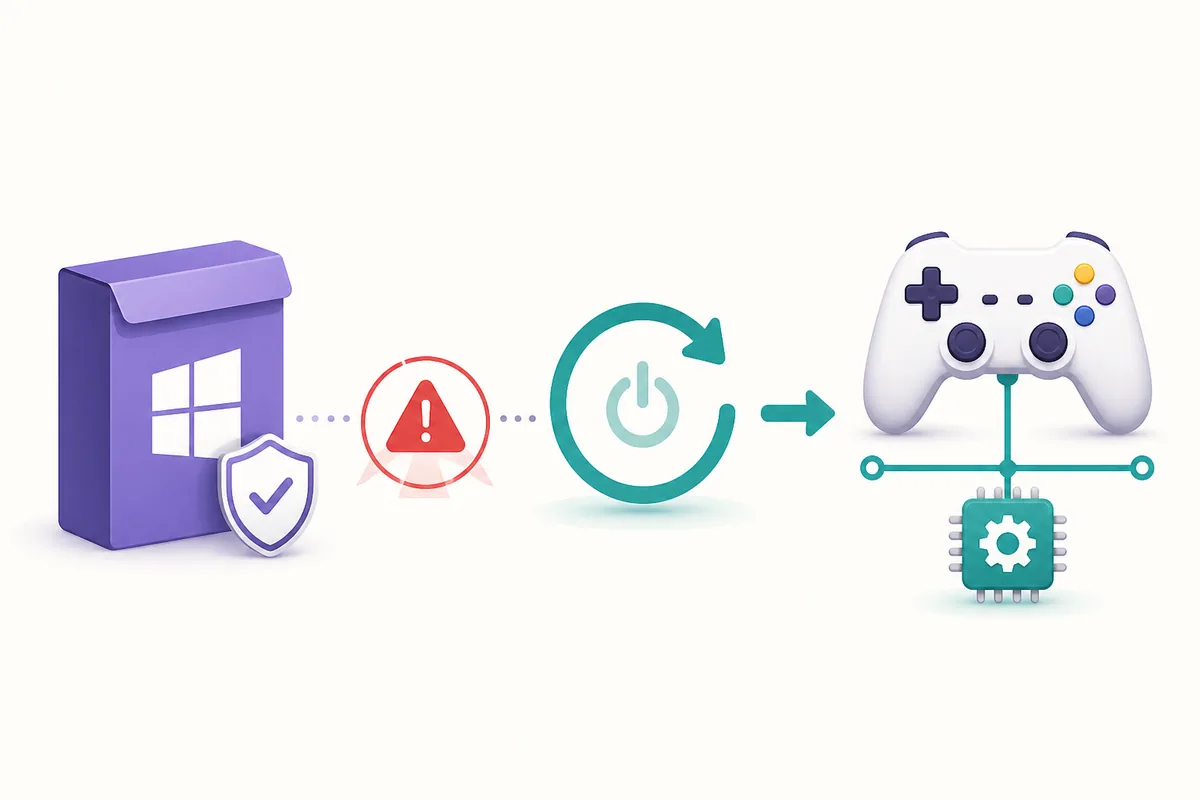
What ViGEmBus driver error 1603 means
Error 1603 is a generic Windows Installer code. Read it as a failed setup transaction, not as proof that the download is fake or that your physical controller has failed.
The ViGEmBus driver error 1603 usually appears when Windows cannot complete the install or removal transaction. Common causes include an older ViGEmBus package still registered, a duplicate virtual bus, a controller application holding a driver handle, a pending reboot, or an installer launched from a temporary location with insufficient permissions. The message itself does not identify which cause is present.
Keep the layers separate. The setup package installs the Windows virtual bus; DS4Windows, BetterJoy, Sunshine, Apollo, and similar programs are clients that request virtual controller output. If the package installs successfully but the client still reports that ViGEmBus is missing, the next check belongs in Device Manager and the client configuration rather than in another download.
This page stays intentionally generic. If the message appears inside Sunshine while you are fixing Moonlight controller input, use the Sunshine ViGEmBus guide for the host/client boundary. For the exact fatal message used by several controller tools, use the broader ViGEmBus not-installed guide.
| What you see | Likely layer | First evidence to collect |
|---|---|---|
| 1603 during setup | Windows Installer or an old package | Close clients, reboot, and check Installed apps |
| 1603 after an upgrade | Previous package or pending reboot | Remove the old entry and restart before retrying |
| Setup completes but the app still complains | Client state or virtual output | Check one healthy bus in Device Manager, then restart the app |
| Two Nefarius or virtual bus entries | Duplicate or bundled copies | Clean the normal package first; do not delete random driver files |
| Only one game fails | Game, client profile, or input path | Test virtual output before changing the driver again |
Before you retry the ViGEmBus installer
Do not repeatedly launch the EXE while the same controller utilities are still running. Exit their windows and notification-area processes, stop a Sunshine or Apollo service through its normal controls, and disconnect a test client that may keep the virtual bus open. A reboot is useful when Windows has a pending driver operation, but it is not a reason to skip checking the source and existing package.
Verify the stable official destination first: the archived Nefarius v1.22.0 release contains the file named ViGEmBus_1.22.0_x64_x86_arm64.exe. The release is the final public setup, not an actively maintained update. Keep the file name, publisher, and release URL together when checking a copy.
If the installer shows 1603 again, note whether the failure happens at launch, during removal, or after the progress bar has moved. An MSI log or the Windows Event Viewer can add evidence, but do not paste a random log-cleaner command into an elevated shell before you know which package is failing. For a normal cleanup sequence, follow the site's ViGEmBus uninstall guide.
- 1
Close controller clients
Exit DS4Windows, BetterJoy, Sunshine, Apollo, XOutput, and other tools that may create or consume a virtual controller.
- 2
Restart Windows
A reboot clears pending installer operations and releases handles held by a service or client process.
- 3
Check Installed apps
Look for Nefarius Virtual Gamepad Emulation Bus Driver before running another setup. An existing entry should be removed normally when the package is broken or duplicated.
- 4
Keep one repair path
Use the official release asset, the normal uninstaller, and Device Manager evidence. Do not combine several old MSI packages or generic driver-cleaner utilities.
Remove an old or duplicate ViGEmBus package
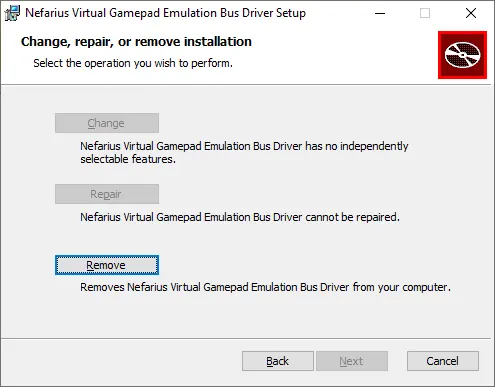
If Installed apps contains Nefarius Virtual Gamepad Emulation Bus Driver, use its own Remove action before trying to install again. The historical setup screen below is a real installer view: choose Remove, let the normal transaction finish, and restart Windows. Do not assume that a second EXE will repair every partially registered copy.
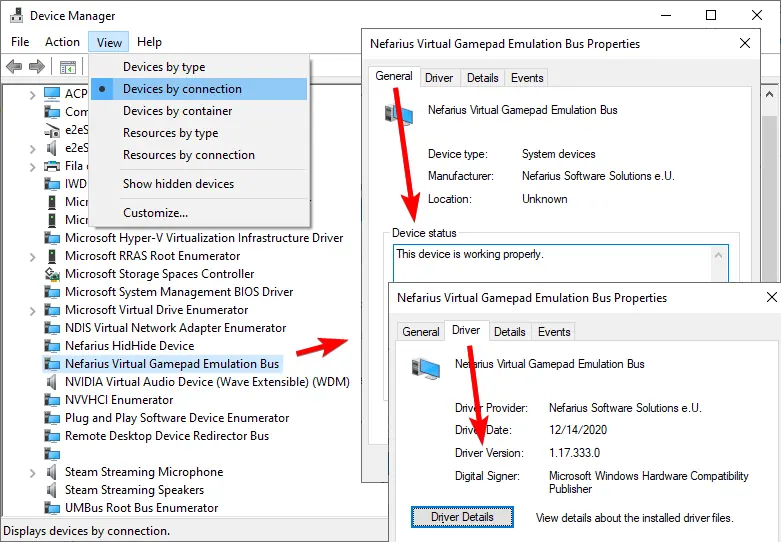
After the reboot, open Device Manager and choose View → Devices by connection. Look for Nefarius Virtual Gamepad Emulation Bus or another clearly named Virtual Gamepad Emulation Bus entry. One healthy entry is expected; multiple entries are a reason to stop and clean the package carefully. If the normal uninstall leaves a persistent vigembus.inf package, use the deeper procedure in the official Nefarius installation guide rather than guessing.
A bundled copy can return when a controller application repairs its own dependencies. Record which application installed it and check that application's current documentation. The goal is not to delete every Nefarius device; it is to leave one source-consistent ViGEmBus installation for the client that actually needs it.
Reinstall the official setup and verify the bus
Once the old copy and duplicate entries are gone, run the final official EXE with the Windows administrator approval it requests. The release asset contains the x86, x64, and ARM64 builds in one file, so do not search for a newer architecture-specific MSI. If an in-place upgrade appears unchanged after the first pass, the official release notes describe running the same setup again; use that documented behavior instead of mixing package generations.
Restart Windows when setup asks or when the bus has just been removed. Then verify the result in Device Manager before testing a game. The useful evidence is the product name, Nefarius publisher, digital-signature context, and a General tab that says the device is working properly. The visible driver-file version does not have to equal the setup tag `1.22.0`; package and kernel-driver identifiers are not always the same.
The real Device Manager screenshot below is included to show where the evidence lives. If the bus is healthy but the original app still fails, stop reinstalling and use the relevant client guide: DS4Windows, BetterJoy, or Apollo.
| Verification | Pass signal | What it does not prove |
|---|---|---|
| Installed apps | Nefarius package is registered | The client has selected the right output mode |
| Device Manager | One bus is enumerated without a warning | Every game will accept virtual input |
| General status | Windows says the device is working properly | Sunshine, DS4Windows, or BetterJoy is configured |
| Client test | The intended virtual controller appears | The download came from an unofficial mirror |
| Source check | Release tag, file name, and publisher agree | The retired project will receive future fixes |
Separate the driver failure from the client error
A successful repair ends at a healthy bus, but the user's actual goal is usually a virtual controller inside another application. Test that second layer separately. A physical controller can be visible while virtual output is disabled, and one game can reject an output mode while another accepts it.
For Sunshine and Moonlight, the host-side service and the client-side stream are different checks. For DS4Windows or BetterJoy, confirm the output controller, profile, and competing mapper settings. The existing app-specific guides are better places for those decisions than a generic 1603 page, which is why this page links to them rather than repeating their full setup instructions.
If the app still says ViGEmBus is missing after Device Manager reports a healthy bus, capture the exact app version and log message. It may be using another backend, running before the reboot completed, or holding stale state. Follow the app's current documentation before changing a working Windows driver.
| Client situation | Next check | Do not assume |
|---|---|---|
| Sunshine host with Moonlight input | Restart the host service and test virtual output | A Moonlight network issue is a driver issue |
| DS4Windows sees the physical pad | Check profile output and one healthy bus | Input detection means virtual output is enabled |
| BetterJoy connects but games see nothing | Check output mode and competing mappers | The driver needs a second download |
| One game rejects the controller | Test another virtual-controller consumer | Windows installation failed again |
| Healthy bus, repeated app warning | Read the current client log and release notes | Error text always identifies the failing layer |
Fixes to avoid after error 1603
Do not install a generic driver updater, a renamed mirror package, or a loose DLL/SYS file because it promises to clear 1603. A kernel driver deserves a source and publisher you can verify. The final public ViGEmBus release is archived, so a page claiming a newer official version needs evidence from Nefarius rather than a badge on the download site.
Do not disable Windows driver-signature enforcement or delete arbitrary files under System32 and the Driver Store. Those actions can hide the original cause and affect unrelated devices. If normal removal and the official cleanup instructions cannot clear a persistent package, create a recovery point and get help from the original documentation instead of escalating blindly.
The project is retired. Read the ViGEmBus end-of-life guide when you need to understand the lack of future compatibility promises, the removed legacy updater, or why an old client may need a different supported backend. A repaired 1.22.0 installation is a verified historical release, not a promise of ongoing maintenance.
- Do not mix the final all-in-one EXE with old architecture-specific MSI packages without an official reason.
- Do not remove HidHide, Bluetooth, HID, or unrelated Nefarius devices simply because a client reports 1603.
- Do not claim that a Device Manager number must equal the setup tag 1.22.0.
- Do not test several controller mappers at once while diagnosing the virtual output path.
- Do not call a third-party mirror official, safe, or current without first-party evidence.
ViGEmBus driver error 1603 FAQ
What causes ViGEmBus error 1603?
It is a generic Windows Installer failure. A previous package, duplicate bus, pending reboot, locked driver handle, permission problem, or damaged installation can be involved. The error number alone cannot identify the exact cause.
Should I run the ViGEmBus installer as administrator?
Use the normal Windows administrator approval requested by the official setup. Do not solve a source or package mismatch by disabling signature enforcement or launching random cleanup commands.
Do I remove ViGEmBus before retrying error 1603?
When an existing package is broken or duplicated, remove it through Installed apps, restart Windows, check Device Manager, and then install one verified copy. Do not remove unrelated devices.
What is the official ViGEmBus file after error 1603?
The final public release is v1.22.0 and its all-in-one asset is ViGEmBus_1.22.0_x64_x86_arm64.exe. Use the original Nefarius GitHub release URL, not a renamed mirror or a loose SYS file.
Does error 1603 mean my controller is broken?
Usually no. It points to a failed installer transaction. Check the Windows bus first, then test the controller application's virtual output and the game separately.
Is this the same as Moonlight or Sunshine error 1603?
The Windows installer code can be the same, but Sunshine and Moonlight add a host/client troubleshooting layer. Use the Sunshine-specific guide when the streaming path is the main problem.
Official sources used
Product and safety facts on this page are checked against first-party material. External sources open in a new tab.
- ViGEmBus v1.22.0 official release — final setup asset, release tag, file name, and project state
- Nefarius installation and troubleshooting guide — normal removal, duplicate packages, Device Manager checks, and deeper cleanup context
- Nefarius ViGEmBus end-of-life statement — retirement, legacy updater, and limits of future support