
What it means to use the ViGEmBus driver
The most important distinction is between the bus driver and the client application. Readers asking how to use vigem bus driver should know that the driver supplies a Windows device interface that a client can call. It does not read every controller by itself or provide a profile editor. The client handles the physical controller, mapping and virtual output request.
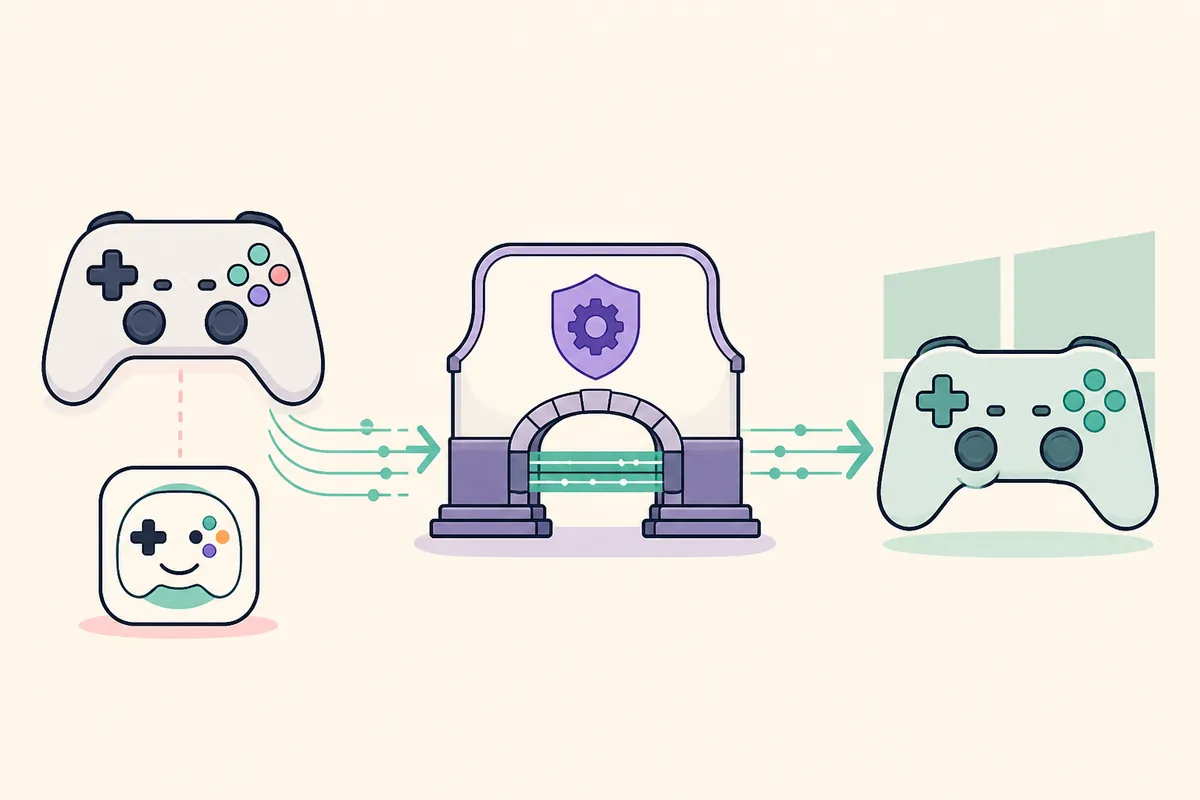
A normal path looks like this: a USB or Bluetooth controller is detected by Windows, the client reads its buttons and axes, the client asks the vigem bus driver for a virtual device, and the game reads that virtual device. This is the basic how to use vigem bus driver path. If the client cannot open the bus, changing a game profile will not solve the missing-driver state.
| Layer | What you use it for |
|---|---|
| Physical controller | USB or Bluetooth device that supplies button and axis input |
| Client application | Reads the controller, applies a profile and requests virtual output |
| ViGEmBus | Windows bus layer that exposes a virtual gamepad device |
| Game or remote client | Reads the virtual Xbox 360 or DualShock-style controller |
Prepare Windows and the client application
A clean handoff is easier to test than a stack of simultaneous controller tools.
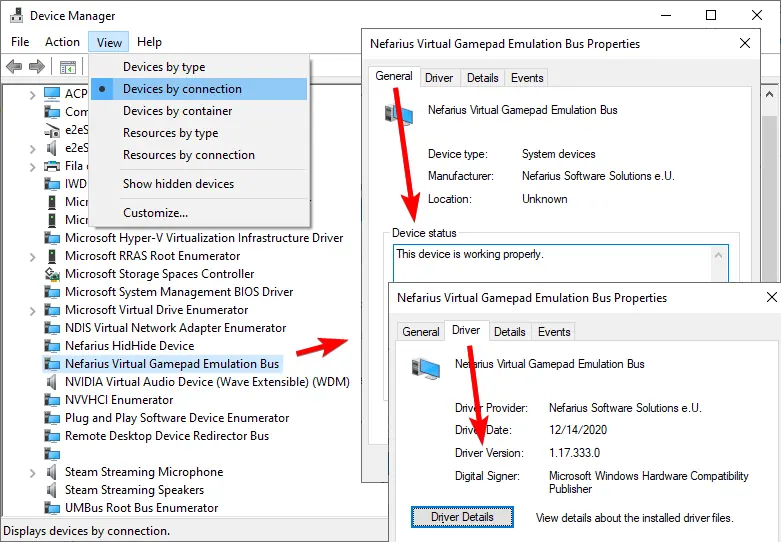
Before you use the ViGEmBus driver, confirm that Device Manager shows one healthy Nefarius Virtual Gamepad Emulation Bus entry. Anyone learning how to use vigem bus driver should check this layer first. If the driver is not installed yet, follow the ViGEmBus installation guide. If an app says the bus is missing, use the not-installed troubleshooting guide.
Choose one client for the first test. DS4Windows, BetterJoy, Apollo and Sunshine can have different profile names and output controls. Close the others, including tray processes, so two clients do not compete for the same physical controller or create duplicate virtual devices.
- Windows 10 or 11 with the bus shown as a working device.
- One controller client open for the first test.
- A connected physical controller that the client can detect.
- A default or known-good output profile, without experimental remapping.
- A gamepad test page or Windows joy.cpl available for verification.
Use ViGEmBus through a controller client
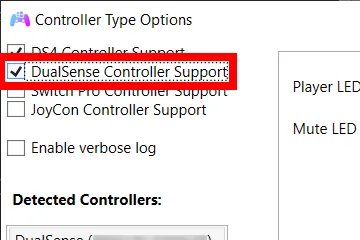
The exact labels vary, but the workflow is consistent. To see how to use vigem bus driver in practice, open the client and wait until the physical controller appears. Turn on its virtual controller or output option, then select the output type required by the game. Choose Xbox 360 or DualShock 4 output according to the client and game, not a hidden ViGEmBus setting.
Move one stick and press one button while watching the client's live state. The physical input should change in the client before you test a game. If the client shows input but the virtual output does not appear, check its output toggle, profile assignment and exclusive-mode settings before touching the driver.
When the client reports a virtual controller, open Windows Game Controllers with joy.cpl or use the client's built-in tester. This is how to use vigem bus driver without launching a game: select the new device, open Properties and confirm that buttons and axes respond. It separates a bus handoff problem from a game-specific mapping problem.
- 1
Open one compatible client
Start DS4Windows, BetterJoy, Apollo, Sunshine or another client that documents ViGEmBus output. Close competing controller tools for this first pass.
- 2
Select the physical controller
Wait for the USB or Bluetooth device to appear, then assign a stable profile. Do not change several profiles while diagnosing the bus.
- 3
Enable virtual output
Turn on the client option named virtual controller, output controller or emulation. Choose the output type expected by the game.
- 4
Test one input
Press a button and move a stick. Confirm that the client sees the input and that a virtual device appears in its status area.
- 5
Verify in Windows
Run
joy.cplor the client's tester, select the virtual device and confirm the buttons and axes respond before opening a game. - 6
Launch the game last
Start the game after the virtual device passes its test. Check the game's input selection and avoid running a second remapping layer during the first test.
Verify the virtual device in Windows
A successful client connection should leave a visible virtual controller, not just a green status message. This how to use vigem bus driver verification starts with Windows + R: enter joy.cpl and open the controller list. Select the expected device, open Properties and use the Test tab to move an axis and press a few buttons.
If the virtual device is missing, open Device Manager and choose View → Devices by connection. Look for Nefarius Virtual Gamepad Emulation Bus under System devices. A single healthy bus confirms that Windows loaded the driver; it does not prove that the client enabled output. Check both layers before reinstalling.
| Check | What it proves | What it does not prove |
|---|---|---|
| Client sees physical controller | The client can read the source device | The bus or virtual output is configured |
| Nefarius bus is working | Windows loaded the ViGEmBus device | A client profile is producing output |
| Virtual device passes joy.cpl | The client-to-bus handoff works | The game will choose the right device automatically |
| Game receives buttons | The game accepts the selected output | Every game profile or remapper is correct |
Common client examples and boundaries
DS4Windows commonly uses ViGEmBus to expose a virtual Xbox 360 or DualShock-style controller for a physical PlayStation controller. Its profile controls are a practical example of how to use vigem bus driver; test the resulting device in Windows. For a DS4Windows-specific error, use the DS4Windows and ViGEmBus guide.
Apollo and Sunshine can use virtual controllers for remote-play or streaming workflows. In those setups, verify the local virtual device before testing the network session. A stream can be healthy while the controller mapping is wrong, so test the virtual output locally and then test the remote game.
These clients are examples, not a promise that every application supports every output type. Check the application's current support notes and avoid running multiple remappers.
Fix a failed client-to-bus handoff
If the client says ViGEmBus is not installed, close the client, reboot Windows and check Device Manager. If the bus is absent or has an error icon, repair the driver through the official installation path. If the bus is healthy but output is missing, focus on the client profile and output toggle rather than repeating the installer.
If two virtual devices appear, close every controller client and start one clean test. Duplicate output can cause double input, a drifting camera or a game that chooses the wrong device. Remove old or duplicate driver entries only through the normal uninstall and the documented cleanup path; do not delete random Driver Store files.
If input works in the client but not in joy.cpl, look for an output-disabled state, an unsupported profile, an exclusive-mode conflict or a stale client process. If joy.cpl works but the game does not, select the correct output in the game and check for Steam Input or another remapper intercepting it.
Never copy a loose vigembus.sys, install a driver-pack mirror or disable Windows driver-signature enforcement to force a result. Those shortcuts remove the source trail and can introduce a different kernel-driver problem. For a broader reset, follow the complete uninstall guide and reinstall from the official release.
| Symptom | Likely layer | First safe action |
|---|---|---|
| Client cannot find the bus | Driver or Windows device state | Reboot, inspect Device Manager, then repair from the official setup |
| Client sees input but no virtual device | Client profile or output toggle | Enable virtual output and test a known-good profile |
| Virtual device works but game ignores it | Game or second remapper | Select the output device and disable duplicate mapping for the test |
| Two virtual controllers appear | Multiple clients or stale entries | Close competing clients and clean old copies through normal uninstall |
| Buttons are doubled | Physical and virtual devices both read | Use the client guidance for hiding duplicate input after basic output works |
How to use vigem bus driver FAQ
How to use vigem bus driver without opening an app?
You do not open ViGEmBus like a normal application. ViGEmBus is a Windows bus driver. Open the compatible client that needs it, such as DS4Windows, BetterJoy, Apollo or Sunshine, and enable that client's virtual output option.
How do I know that a client is using ViGEmBus?
The client should report virtual output and Windows should show a virtual controller in joy.cpl or the client's tester. Device Manager should also show one healthy Nefarius Virtual Gamepad Emulation Bus entry.
Which output should I choose, Xbox 360 or DualShock 4?
Choose the output that the client and game support best. Xbox 360 output is common for XInput games, while a client may offer DualShock-style output for other workflows. Test the selected device in joy.cpl before opening the game.
Why does the client see my controller but no virtual pad appears?
Check the client's output toggle, assigned profile, exclusive-mode setting and duplicate remappers. If the bus is healthy in Device Manager, repeating the installer is unlikely to fix a disabled client output.
How do I test ViGEmBus without launching a game?
Press Windows + R, run joy.cpl, select the virtual controller and open Properties. Use the Test tab to confirm buttons and axes respond, then troubleshoot the game separately.
Official sources used
Product and safety facts on this page are checked against first-party material. External sources open in a new tab.
- ViGEmBus v1.22.0 release — official final setup source and release context
- Official ViGEmBus repository — project scope and archived driver context
- Nefarius install and removal documentation — Device Manager checks and safe cleanup boundaries