What a missing ViGEmBus driver means
The phrase “ViGEmBus driver missing” describes a Windows or client-app state, not one exact error code. This guide treats a missing ViGEmBus driver as a repair state with several possible causes. A controller mapper may fail because the bus is absent, Windows disabled it, two packages compete, or the app cached an old state before a reboot. The physical controller can still appear in Bluetooth or USB while virtual Xbox or DualShock output is unavailable.
ViGEmBus has no configuration window. Check the installed product, Device Manager and the application that requests virtual output; a random DLL or SYS file does not replace the signed setup. The final public setup is version 1.22.0 and the release is archived.
| What you see | Most likely boundary | First check |
|---|---|---|
| No ViGEmBus product in Installed apps | The setup never completed or was removed | Run the official EXE, then reboot |
| No Nefarius bus in Device Manager | The device package is absent, disabled or blocked | Show Devices by connection and inspect System devices |
| A yellow warning icon | Windows has a device or signing problem | Record the error code before removing the entry |
| Two or more bus entries | Old, bundled or partial copies are competing | Uninstall normally, reboot and clean duplicates |
| One healthy bus but the app fails | Client profile, service or output mode is wrong | Restart the app and check its virtual-output setting |
Check the installed product before reinstalling
Start with Windows' normal product list so you know whether an installer actually registered. Open Settings → Apps → Installed apps, or press Win + R and run appwiz.cpl for the classic list. Search for “Nefarius Virtual Gamepad Emulation Bus Driver”, “ViGEm Bus Driver” or an entry containing “Virtual Gamepad Emulation Bus”. Names can vary between older releases and bundled installers.
If the entry exists, note its publisher and whether Windows offers Modify, Repair or Uninstall. Leave unrelated Nefarius components such as HidHide alone. If the entry is absent but the missing ViGEmBus driver state remains, continue with Device Manager because a stale client setting or bundled copy can outlive the product entry.
- 1
Close controller software
Exit DS4Windows, BetterJoy, Sunshine, Apollo and other mappers from the notification area as well as their visible windows.
- 2
Open Installed apps
Search for the Nefarius or Virtual Gamepad Emulation Bus product and record whether it can be repaired or removed.
- 3
Keep the evidence
Write down any publisher, version, error dialog or uninstall failure before changing the driver.
- 4
Do not mix components
Leave HidHide and other Nefarius drivers alone unless the affected app documents a separate conflict.
Find the bus in Device Manager
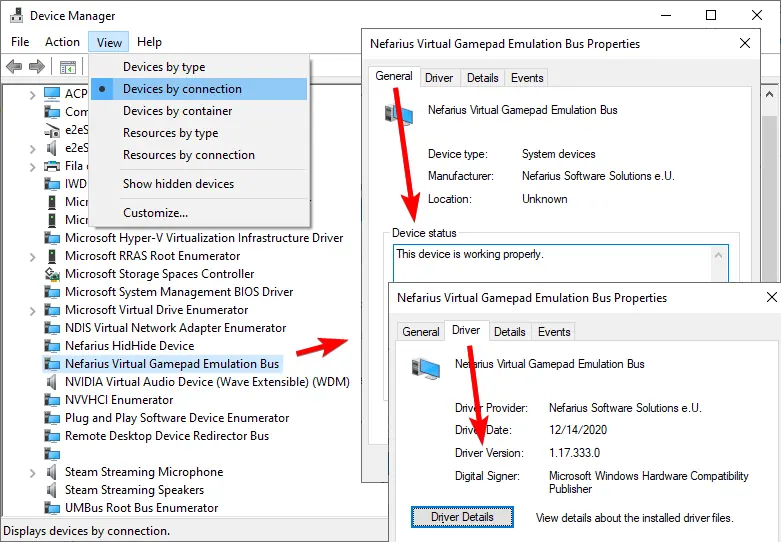
Press Win + X and open Device Manager. Choose View → Devices by connection so Windows shows the bus in the device tree. Look for “Nefarius Virtual Gamepad Emulation Bus” or the older “Virtual Gamepad Emulation Bus” wording. One Nefarius entry is the useful target; a missing entry, warning icon or duplicate entries each need a different next step.
Right-click the entry and open Properties. On the General tab, a healthy device should report that it is working properly; the Driver tab should identify Nefarius as the provider. Capture a Windows error code before uninstalling a warning-marked device. If no entry appears, refresh the hardware view and reboot once before assuming the installer is corrupt.
| Device Manager result | Action |
|---|---|
| One entry, status working properly | Restart the client app and test virtual output |
| One entry with a warning | Record the code, uninstall the device and reinstall the verified setup |
| Two or more entries | Remove the product normally, reboot, then clean remaining duplicates |
| No entry | Reboot, run the official setup as administrator and check the installer result |
| Unknown provider or unsigned file | Stop and redownload from the official GitHub release |
Cleanly reinstall the missing ViGEmBus driver
Use the least invasive sequence first. Deeper Driver Store cleanup is a last resort, not the default download step.
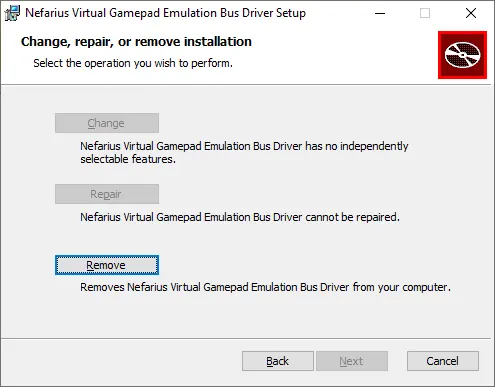
When the product entry exists but the bus is broken, uninstall it through Installed apps or Programs and Features. Restart Windows before inspecting Device Manager again. Removing a product while controller mappers are open can leave handles behind, so close them fully before starting.
After the reboot, enable Devices by connection in Device Manager and remove only remaining ViGEmBus entries. Do not delete random INF files, registry keys or System32 files. Download the final all-in-one ViGEmBus_1.22.0_x64_x86_arm64.exe from the official v1.22.0 release, run it, approve the administrator prompt and reboot. Repeat setup once when upgrading an older copy.
- 1
Uninstall the product
Use Installed apps or Programs and Features to remove the Nefarius Virtual Gamepad Emulation Bus Driver.
- 2
Restart Windows
Let Windows release old driver handles before you inspect the device tree again.
- 3
Remove a remaining device
In Device Manager, remove only leftover ViGEmBus entries and select the driver-removal option when Windows offers it.
- 4
Download the verified EXE
Use the v1.22.0 GitHub asset, not a driver-pack mirror or a loose vigembus.sys download.
- 5
Run setup and reboot
Approve the administrator prompt, finish the normal setup and restart Windows. Repeat setup once when upgrading an older copy.
- 6
Verify before opening the app
Confirm one healthy Nefarius bus in Device Manager, then reopen the controller application and test its virtual output.
When the app still says the driver is missing
A healthy Device Manager entry proves that Windows can see the bus, but it does not prove that every client is configured to create a virtual controller. Restart the affected app after the reboot, reconnect the physical controller and check its selected output mode. Close competing controller mappers while testing so two clients do not hide the real result.
DS4Windows, BetterJoy, Sunshine and Apollo each add their own profile, service or host layer. If the bus is healthy, repair the app from its official documentation instead of reinstalling ViGEmBus repeatedly. For a service-based host, restart the service; for a mapper, confirm virtual Xbox or DualShock output is enabled. A client-library error is beyond the driver installation boundary.
| Healthy bus, failing app | Next diagnostic |
|---|---|
| The app was open during repair | Exit it fully, reboot Windows and start it after verification |
| Virtual output is disabled | Enable the app's Xbox or DualShock output profile |
| A host service uses old state | Restart the service after the bus is healthy |
| Another mapper is running | Close competing remapping tools and test one client |
| The app has changed backends | Follow its current documentation; do not assume ViGEmBus is still required |
Special cases and fixes to avoid
HP Omen systems are a documented special case. Some models shipped with an old modified ViGEmBus fork, and a client can detect that copy instead of the Nefarius package. If the provider or device name remains unexpected after a normal clean reinstall, use the HP Omen guidance linked from the official Nefarius documentation rather than stacking more installers.
Bundled controller tools can install their own copy silently. If a duplicate returns, inspect the application's installer or repair settings. Windows Server 2022 is outside the final setup's documented Windows 10 and Windows 11 target, and archived MSI names are not a reason to use a third-party mirror.
Avoid generic driver sites, unsigned SYS downloads, registry-cleaner commands and broad signature-enforcement changes. These shortcuts remove the source trail and can affect unrelated hardware. Start with the official product uninstall, a reboot, Device Manager and the verified GitHub setup.
Final verification checklist
Before reopening the controller app, confirm the repair in three places: the official setup completed, Device Manager has one Nefarius Virtual Gamepad Emulation Bus with a working status, and the client can create its intended virtual output. This three-part check prevents a healthy Windows driver from being mistaken for a healthy app profile.
Keep the v1.22.0 installer as a known-source repair copy. If the missing ViGEmBus driver is no longer needed, use the normal uninstall path; dependent apps lose virtual output, but the physical controller remains.
ViGEmBus driver missing FAQ
Why is ViGEmBus missing from Device Manager?
The setup may not have completed, Windows may have disabled or removed the device, or an older package may be blocking registration. Reboot once, check Installed apps and run the verified v1.22.0 setup before using deeper cleanup.
How do I reinstall a missing ViGEmBus driver?
Close controller apps, uninstall the Nefarius Virtual Gamepad Emulation Bus Driver if it is listed, reboot, remove only leftover ViGEmBus entries in Device Manager, then run ViGEmBus_1.22.0_x64_x86_arm64.exe from the official GitHub release and reboot again.
What should I do if two ViGEmBus entries appear?
Uninstall the product normally, restart Windows, enable Devices by connection in Device Manager and remove remaining ViGEmBus entries. Reinstall the official setup only after duplicates are gone.
What should I do if the app still fails?
Restart Windows and the client, confirm one healthy Nefarius bus, enable virtual output and close competing mappers. If the bus is healthy, use the client's current troubleshooting.
Official sources used
Product and safety facts on this page are checked against first-party material. External sources open in a new tab.
- Nefarius install and troubleshooting guide — Device Manager health checks, removal, duplicate entries and special cases
- ViGEmBus v1.22.0 release — final setup asset, archived status, unchanged driver version and two-run upgrade note
- Official ViGEmBus repository — project source and production-signed release context