
What “not installed and very slow” usually means
A ViGEmBus message and a slow controller are related clues, but they are not proof that one file caused every symptom.
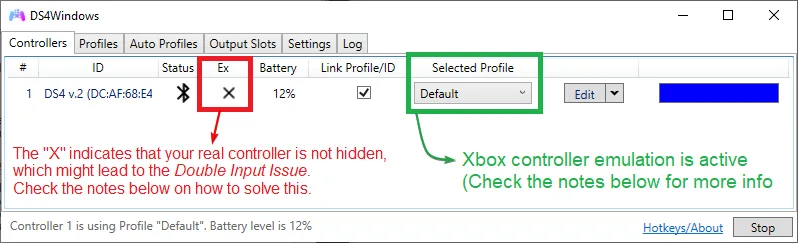
The search phrase “ds4 vigembus not installed very slow” describes a sequence: DS4Windows reports that the virtual bus is unavailable, then the user notices delayed buttons, a frozen stick, or a game that takes a long time to react. Treat that sequence as a diagnostic starting point rather than as a single confirmed cause. A Bluetooth radio, a stopped DS4Windows session, a hidden device, Steam Input, or a damaged bus can produce similar results.
ViGEmBus is the kernel-level bridge that lets DS4Windows expose a virtual Xbox 360 or DualShock 4 controller. DS4Windows can still see a physical pad without that bridge, so a connected controller does not prove that the output path is healthy. The useful question is whether the virtual controller appears promptly and consistently after a clean reboot.
The official DS4Windows installation guide lists ViGEmBus as required for virtual controller creation and recommends HidHide to prevent double input. The official troubleshooting guide separates real-controller detection from virtual-controller or game recognition. This page follows the same boundary and adds the missing slowdown timeline: identify the layer, test one change, and record the result before moving on.
| Observation | What it tells you | First check |
|---|---|---|
| The physical pad is absent in DS4Windows | The problem is earlier than ViGEmBus output | USB cable, Bluetooth pairing, Windows Devices list |
| The pad appears but output is delayed | The profile, connection, or virtual bus may be involved | Compare USB and Bluetooth, then check the Nefarius bus |
| The game sees two pads | Real and virtual devices are both exposed | HidHide, Steam Input, and the selected output type |
| Only one game is slow | The driver may already be working | Game controller mode and per-game input settings |
Separate the four layers before reinstalling
DS4Windows virtual controller latency is easier to diagnose when each layer has a small, observable test.
Start with the physical controller. Press a button in DS4Windows and watch whether the input indicator changes immediately. If the indicator itself pauses, the bus is not yet the first suspect. Test a known data-capable USB cable, another port, or a fresh Bluetooth pairing. A charging-only cable can make a controller appear powered while sending no reliable input.
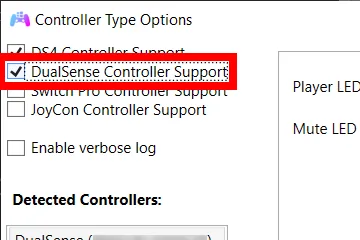
Next check the active profile and output slot. DS4Windows can map a real DualShock 4 or DualSense to a virtual Xbox 360 or DualShock 4 device. A profile that is stopped, assigned to the wrong output, or waiting for an unavailable slot can look like a slow driver. Close other mapper software while testing so two programs do not compete for the same pad.
The third layer is the virtual device. When DS4Windows receives the input quickly but the game reacts late, open the Windows game-controller panel or the game’s own input test. If the virtual device moves smoothly there, the remaining delay is probably in the game, Steam Input, Bluetooth transport, or frame timing. Only the fourth layer, the DS4 ViGEmBus kernel path, should trigger a driver repair.
| Layer | Simple test | Healthy result |
|---|---|---|
| Physical pad | Press buttons while watching DS4Windows | Input appears without pauses |
| DS4Windows profile | Confirm the app is running and output is selected | One active profile and one intended output |
| Virtual controller | Open a Windows or game controller test | Axes and buttons move at the same time as the pad |
| ViGEmBus | Inspect Device Manager after reboot | Nefarius bus has no warning icon and reports normal status |
Check the ViGEmBus device and Windows state
A clean Device Manager check prevents a working driver from being reinstalled unnecessarily.
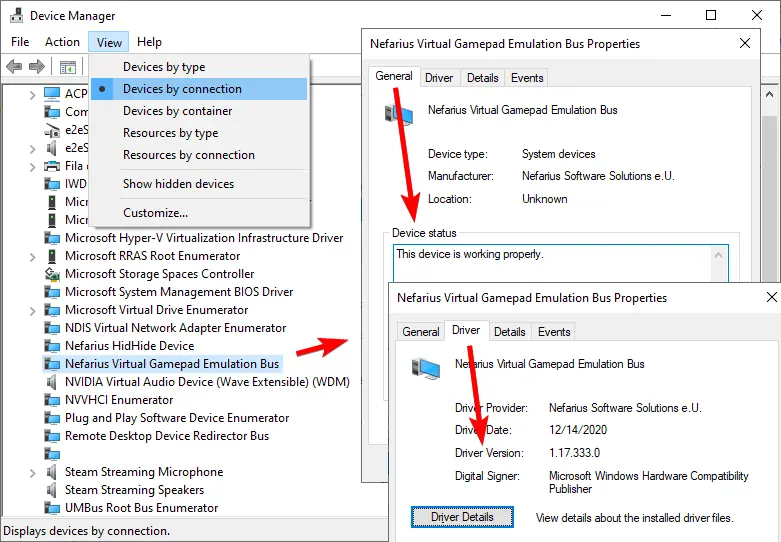
Close DS4Windows and other controller utilities, then restart Windows once. A restart matters because a driver package can be registered while the kernel device from the previous session is still unavailable. After signing in, open Device Manager and expand the entry that contains Nefarius Virtual Gamepad Emulation Bus. The exact grouping can vary by Windows build, but the device should be present without a yellow warning icon.
Open Properties and read Device status. A normal status means Windows has loaded the DS4 ViGEmBus bus; it does not guarantee that every game or Bluetooth link is configured correctly. If the bus is missing, disabled, or reports an error code, save that code and continue to the repair section. Do not delete unrelated HID devices simply because their names contain Nefarius, Bluetooth, or gamepad.
You can also check Settings > Apps > Installed apps for the Nefarius driver entry. The app entry and the kernel device answer different questions: the entry shows that a package was registered, while Device Manager shows whether the bus is currently enumerated. If they disagree, repair the package once and reboot instead of running several installers over one another.
- Windows has been restarted after the ViGEmBus warning.
- Nefarius Virtual Gamepad Emulation Bus is present in Device Manager.
- Device status reports that the device is working properly.
- DS4Windows is started after the bus becomes available.
- Only the intended virtual controller is enabled for the test profile.
Isolate Bluetooth input lag from bus lag
DS4Windows Bluetooth input lag can look like a ViGEmBus failure when the virtual device is healthy.
Run one short wired test before changing drivers. Connect the controller with a known data cable, close the Bluetooth connection if Windows keeps both paths visible, and repeat the same button and stick movement. If the wired test is responsive while Bluetooth pauses, the bus is unlikely to be the root cause. Re-pair the controller, remove stale Bluetooth entries, and test the adapter away from crowded USB 3 ports or other wireless devices.
If both USB and Bluetooth are slow inside DS4Windows, watch the input indicator before opening a game. A pause there points to the controller, Windows HID handling, the app session, or a competing mapper. A smooth indicator with a delayed game points later in the chain. Record whether the delay is a constant offset, a repeating pause, or a single drop after idle; each pattern suggests a different boundary.
Do not treat a community report of high Bluetooth latency after an update as proof that every ViGEmBus installation is defective. It is useful as a symptom example, not as a universal diagnosis. The practical result you need is a reproducible difference between wired and wireless input on your own machine.
- 1
Make a wired baseline
Use a data-capable USB cable and repeat the same ten button presses and one stick sweep. Note whether DS4Windows reacts immediately.
- 2
Clear the wireless path
Remove the old Bluetooth device in Windows, pair again deliberately, and keep the adapter away from obvious radio or USB interference.
- 3
Compare the virtual output
Check the same virtual controller in a Windows test panel before blaming a particular game or Steam Input profile.
Fix double input and hidden controllers
Two visible controllers can feel like lag because a game receives competing states or switches between devices.
DS4Windows creates a virtual controller while the physical controller remains connected. If a game reads both, one press can appear twice, a camera can move unexpectedly, or the game can keep changing its active device. The DS4Windows installation guide recommends HidHide for this reason. Configure hiding deliberately and confirm that DS4Windows itself is allowed to see the physical pad.
Check Steam Input and any second mapper before touching ViGEmBus. Steam can create another virtual path, while an overlay or controller utility can change the selected device when a game starts. For a clean test, close the second mapper, select one DS4Windows output type, and start the game only after the virtual controller appears.
A hidden physical controller should not be used as evidence that the bus is slow. Hiding changes visibility, not transport speed. If the virtual output is smooth after hiding, the earlier symptom was a duplicate-input conflict. If it remains slow in both wired and wireless tests, return to the bus status and repair path.
| Symptom | Likely boundary | Smallest next action |
|---|---|---|
| Every button appears twice | Physical and virtual pads are both visible | Configure HidHide and disable a second mapper |
| Camera moves when the game starts | Steam Input or output type changes | Use one output type and test with Steam Input isolated |
| DS4Windows loses the physical pad after hiding | The mapper is not exempted | Allow DS4Windows in HidHide and reconnect once |
| Input is still delayed with one clean device | Connection, profile, game, or bus remains | Repeat the wired test and inspect Device Manager |
Repair a damaged or missing ViGEmBus driver safely
Use a repair only when the bus is missing, disabled, or visibly damaged; a slow game alone is not enough evidence.
The official GitHub release page lists ViGEmBus v1.22.0 as the final release, published on November 2, 2023. It says the updater was removed and the project is archived. The stable installer is `ViGEmBus_1.22.0_x64_x86_arm64.exe`. Use the official DS4 ViGEmBus release asset, not a similarly named mirror or a bundle that adds another updater.
Before repair, close DS4Windows and other mappers. In Windows Settings > Apps, remove the existing ViGEmBus package only when Device Manager confirms that it is missing or broken, then restart Windows. Run the verified installer once as an administrator, accept the Nefarius publisher, and restart again. Running several old MSI and EXE packages in succession can leave duplicate or stale device entries.
After the second reboot, check Device Manager first, then start DS4Windows and repeat the same wired and wireless tests. If the bus is healthy but the original slowdown returns only in one game, stop reinstalling. Investigate that game’s controller mode, Steam Input, frame pacing, or overlay instead. The project’s end-of-life status also means a random “newer” ViGEmBus download is not a trustworthy upgrade path.
- 1
Save the symptom and close clients
Record the Device Manager error if one exists, close DS4Windows, Steam, and other controller mappers, and disconnect the pad.
- 2
Remove only the damaged package
Use the Windows app entry when the bus is missing or broken. Do not remove unrelated HID, Bluetooth, or physical-controller devices.
- 3
Restart before reinstalling
A clean restart clears the old kernel session. Install the official v1.22.0 asset once, then restart again.
- 4
Verify before opening the game
Confirm the Nefarius bus status, start DS4Windows, and test one virtual controller before launching a game.
Retest DS4Windows and decide whether the game is at fault
A good repair ends with a repeatable result, not with another installer run.
Use the same controller, profile, connection type, and test sequence that exposed the slowdown. First confirm that the physical input appears in DS4Windows. Next confirm that one virtual controller moves in Windows. Finally open the affected game and check whether it receives the intended Xbox 360 or DualShock 4 output. Changing three settings at once makes the final result impossible to interpret.
If the virtual controller is responsive in Windows and only one title remains slow, ViGEmBus is probably doing its job. Check that title’s controller mode, Steam Input override, frame rate, overlay, and whether it supports the selected output type. If the slowdown happens across every test and the Device Manager status is normal, capture DS4Windows logs and compare a clean profile before considering a version change.
Do not downgrade to an old driver simply because a community post reports a temporary improvement. A downgrade can reintroduce the retired updater or a different device state. The safer boundary is to keep the verified final release, isolate the connection and application layers, and only use a documented compatibility requirement from the application you actually run.
- The phrase ds4 vigembus not installed very slow no longer matches the current state: the bus is present and the warning is gone.
- One intended virtual controller appears in the Windows test panel.
- The same result is reproduced over the chosen connection without a second mapper.
- A game-specific problem is tested with its input mode and Steam Input settings visible.
- Any remaining error code or log line is saved before another change is attempted.
DS4Windows ViGEmBus slowdown FAQ
Can DS4 ViGEmBus make DS4Windows slow by itself?
A missing or damaged DS4 ViGEmBus bus can stop virtual output, but a slow feeling can also come from Bluetooth, a stopped profile, Steam Input, duplicate devices, or one game. Check the layer that actually shows the delay before reinstalling.
Why does DS4Windows say ViGEmBus is not installed after a reboot?
The package may be registered while the kernel device is missing, disabled, or damaged. Check Nefarius Virtual Gamepad Emulation Bus in Device Manager, read Device status, and repair the official package only when that check fails.
Should I use an older ViGEmBus version to fix latency?
Not by default. The official v1.22.0 release is the final archived release, and random older installers can add duplicate devices or retired updater components. Use an older version only when a current application documents a specific compatibility requirement.
How do I tell Bluetooth lag from ViGEmBus lag?
Repeat the same input sequence over a data-capable USB cable. If the wired path is responsive and Bluetooth pauses, troubleshoot pairing or radio conditions. If both paths pause inside DS4Windows, inspect the profile, mapper conflicts, and bus state.
Is ViGEmBus still receiving updates?
No. Nefarius says the project is archived and no longer receives updates. The final GitHub release is v1.22.0, published on November 2, 2023; older updater warnings are a separate issue described in the official end-of-life documentation.
Official sources used
Product and safety facts on this page are checked against first-party material. External sources open in a new tab.
- DS4Windows installation and setup documentation — ViGEmBus is required for virtual controllers; HidHide helps prevent double input.
- DS4Windows controller detection troubleshooting — Separates real-controller detection from virtual-controller and game problems.
- Official ViGEmBus v1.22.0 release — Final release details, publication date, updater removal, and installer assets.
- Nefarius ViGEmBus end-of-life statement — Project retirement and older updater maintenance guidance.